Clean & minimal
Premium / luxury stores.
- Menu link instead of floating launcher
- Outline buttons, muted accents
- PDP Assistant on product pages only
- Welcome Popup off
- Hide prices in recommendations
User manual
A reference guide. Use the menu to jump straight to what you need — or follow Getting started top to bottom for a first-time setup.
Already familiar with Shopify apps? This gets Refina running in under five minutes. Each step links to the detail below.
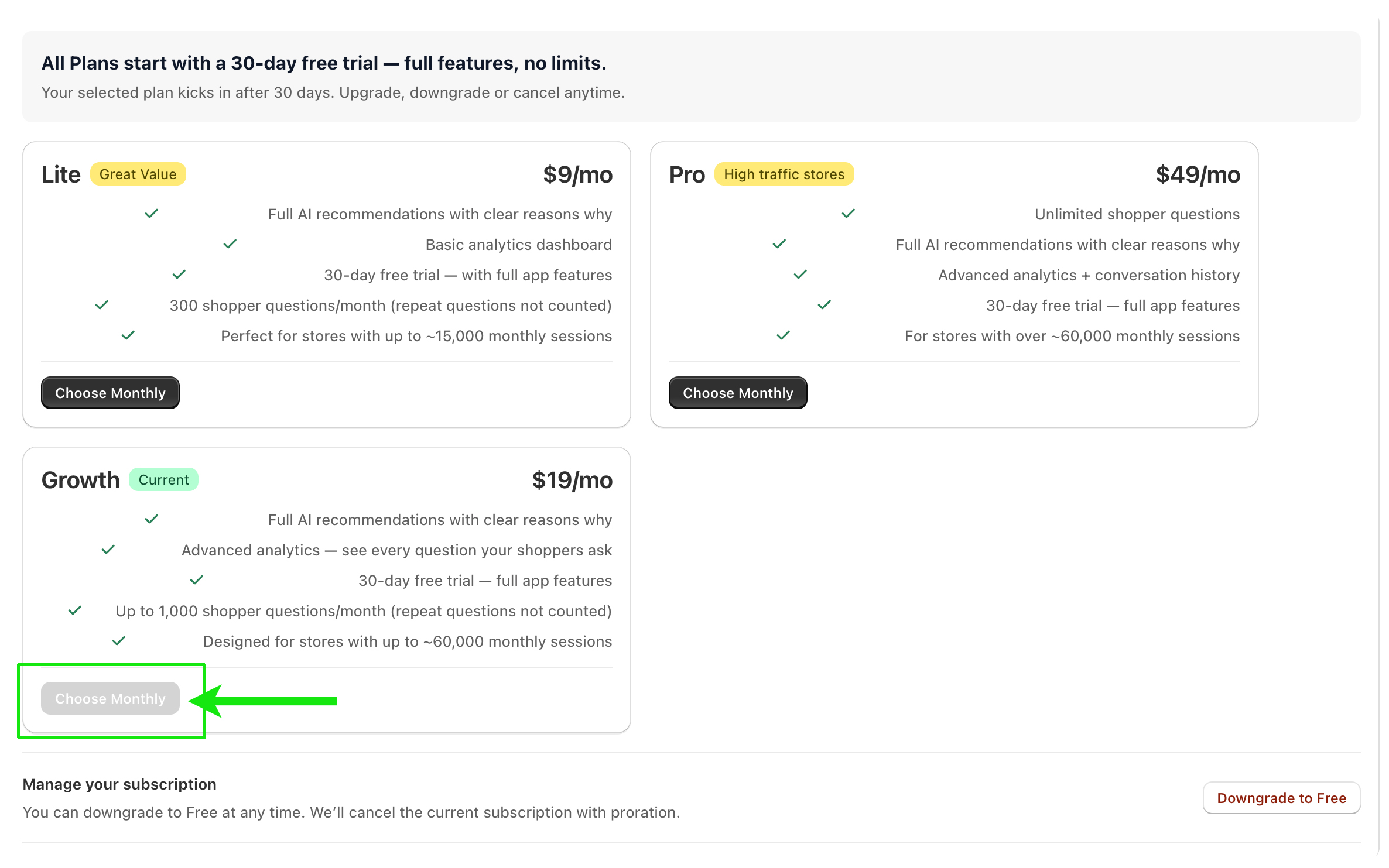
Refina needs an active plan before it can build your store's knowledge base. The plan you choose affects your monthly query allowance and available features. All plans include a 30-day free trial with full features.
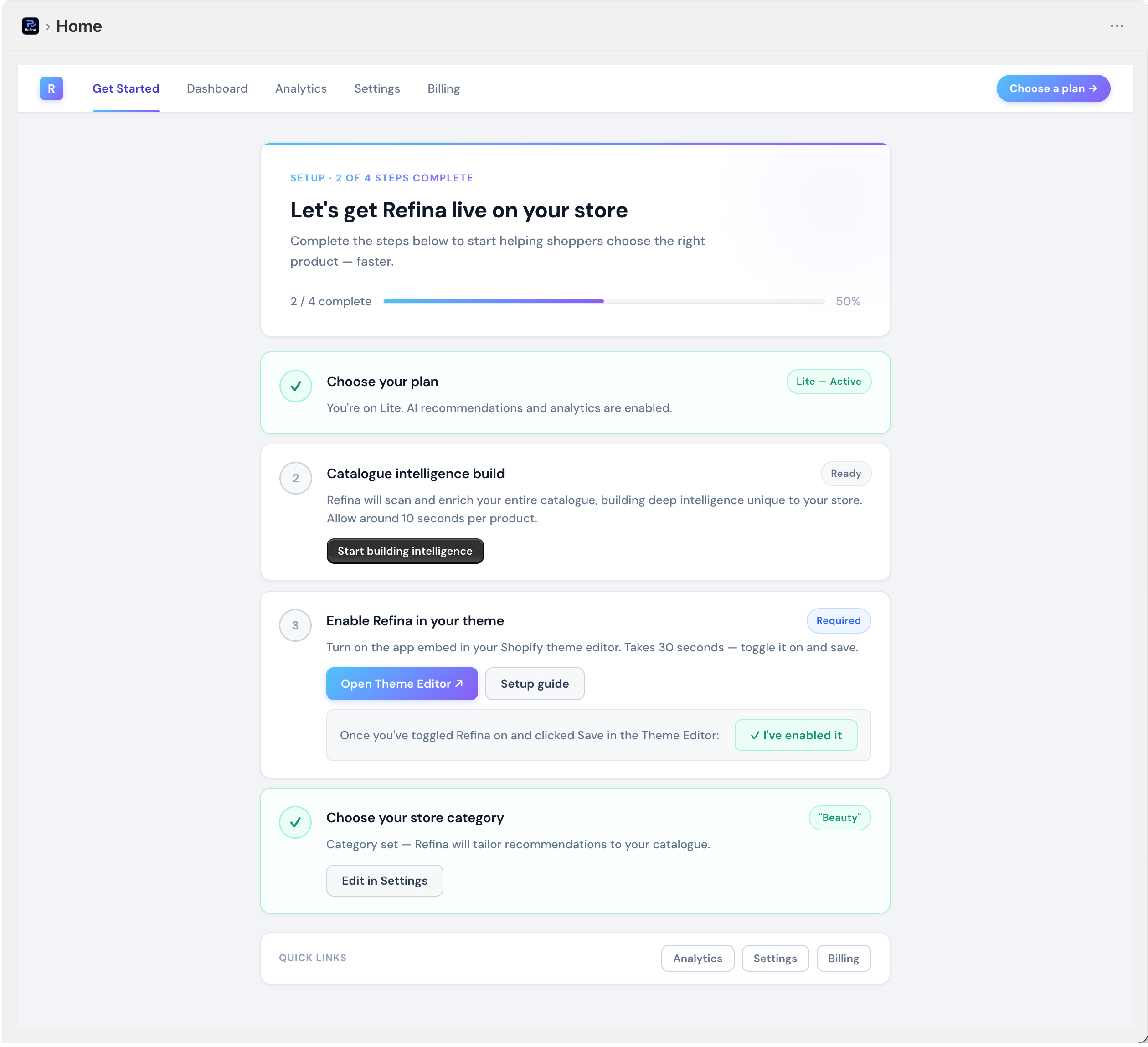
Once your plan is active, return to the Get Started page and click Start building intelligence. This kicks off the catalogue sync and AI enrichment. For the concept behind it, see Catalogue intelligence.
Refina appears on your storefront through Shopify's app embed and app blocks. The minimum setup is enabling the app embed, which adds the launcher and full assistant.
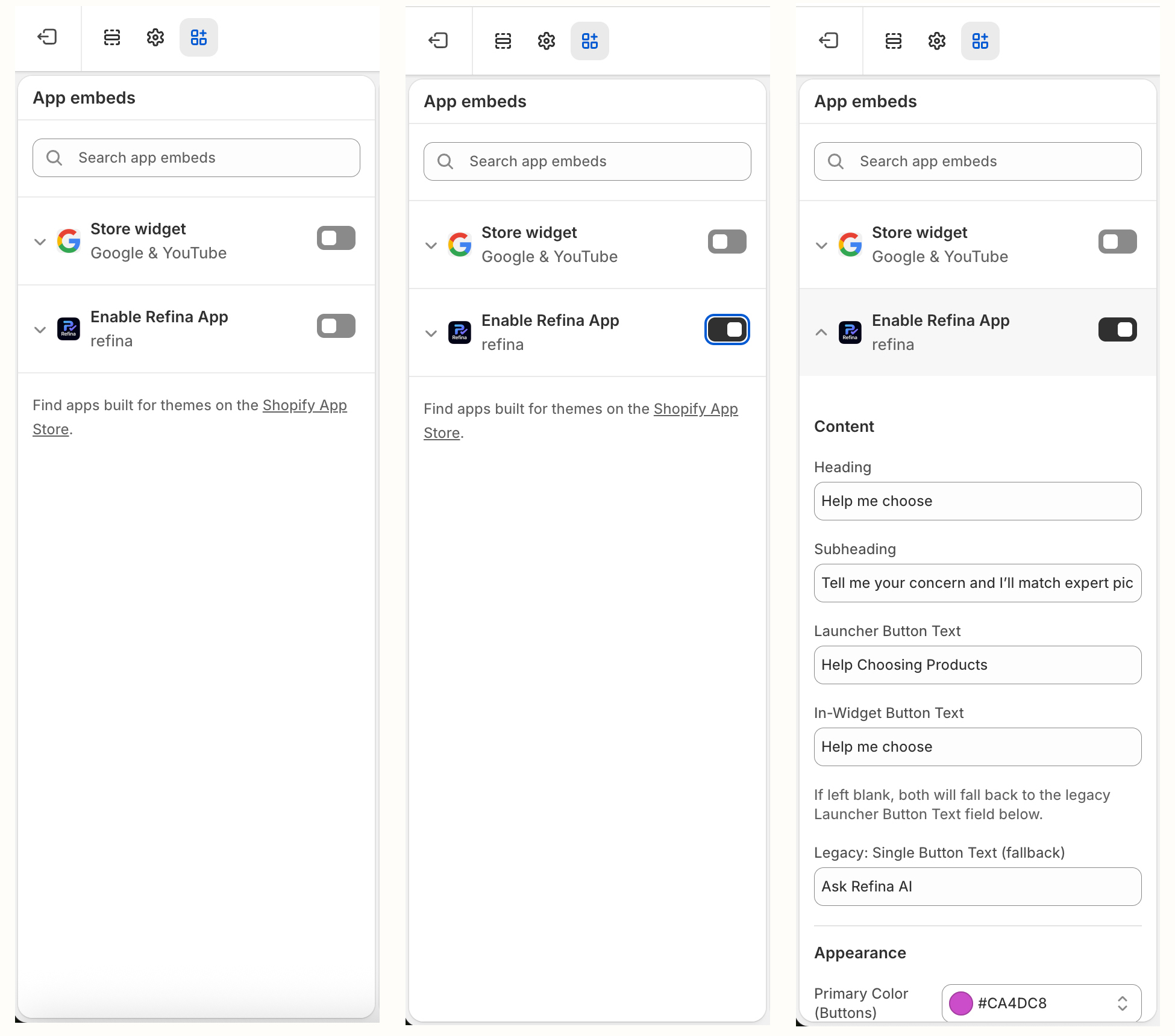
Steps:
To also add the product-page card, see Product Page Assistant. To configure wording, colours, and placement, see Full assistant.
Your store category tells Refina which vocabulary to use — skincare needs "ingredients", apparel needs "materials", technical gear needs "specifications". Set it in Refina Admin → Settings.
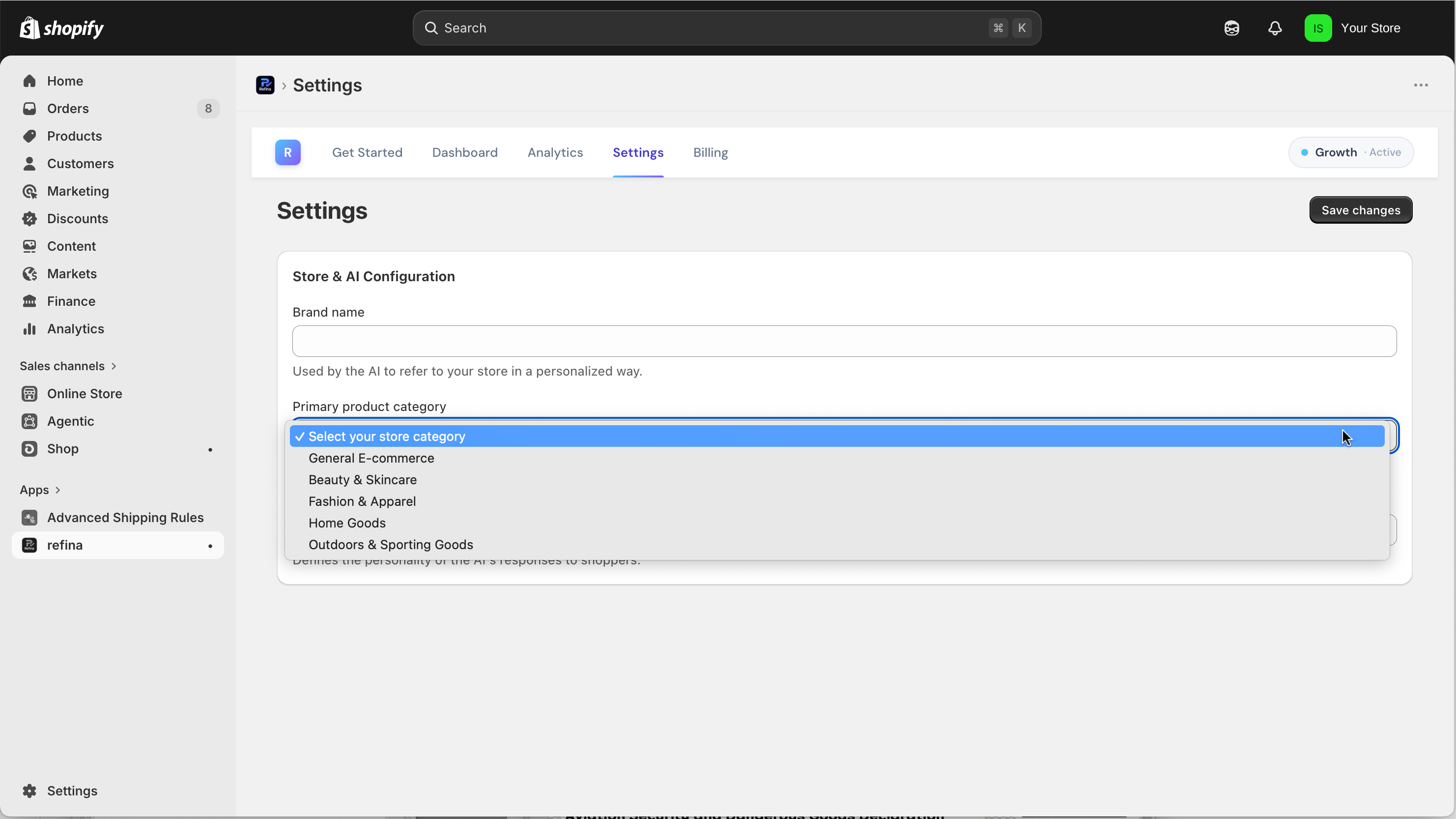
The same question — "What's in this product?" — produces category-appropriate language:
| Category | How Refina answers "What's in this product?" |
|---|---|
| Beauty & Skincare | "Contains niacinamide, hyaluronic acid, and vitamin B5. The ingredients work together to…" |
| Outdoor & Technical Gear | "Uses 800-fill duck-down insulation and a ripstop nylon shell. The materials provide warmth-to-weight…" |
| Supplements & Wellness | "Each capsule has 400mg magnesium glycinate with B6. The active ingredients are chelated for…" |
Sets the store/brand name used in Refina configuration.
Example"IANS Beauty"
Helps Refina use appropriate terminology (ingredients, materials, specifications).
TipChoose the category matching your primary focus.
Sets the broad response style for recommendations.
TipProfessional for most; friendly for lifestyle; expert for technical/B2B.
Refina has several entry points for product advice. They're not separate apps — they're different surfaces at different stages of the journey.
| Surface | What it does | Best for | Where to enable |
|---|---|---|---|
| Full assistant | AI advisor for open-ended questions. | Complex questions, comparisons, follow-ups. | Opened by launcher, menu link, or popup. |
| Launcher button | Floating button that opens the assistant. | Sitewide access. | App embeds → Refina. |
| Menu link | Navigation item that opens the assistant. | Clean navigation-based access. | Shopify menu → /#refina. |
| Product Page Assistant | Product-context card with quick suggestions. | Alternatives & comparisons on a product. | Product template → Add block. |
| Welcome Popup | Optional invitation to get help. | Increasing discovery. | App embeds → Refina. |
Suggested combinations for different store types.
Premium / luxury stores.
New stores building awareness.
Strong product pages.
High mobile traffic.
Complex products or B2B.
500+ products.
The full assistant is Refina's main AI advisor for open-ended questions. Shoppers ask in their own words and receive recommendations with clear explanations. It's customised via your Shopify admin's theme app embed editor: Themes → Customize → App embeds → Refina.
A button that floats on your storefront. Maximum visibility and consistent sitewide access.
A navigation item linking to /#refina. Clean and unobtrusive, with no floating elements.
Main heading at the top of the modal.
Example"Need help choosing?"
Supporting text below the heading.
Example"Ask about ingredients, benefits, or which suits you best."
Text on the floating launcher.
Example"Help choosing products"
Button text inside the widget.
Example"Help me choose"
Wording affects engagement. Compare a generic default with category-specific copy:
Heading: "Need help choosing?"
Subheading: "Ask questions about our products."
Problem: vague value — doesn't say what help they'll get.
Heading: "Find your perfect skincare routine"
Subheading: "Tell us your skin type — get personalised picks in seconds."
Better: category-specific, clear value, explains what to expect.
Main button background colour.
TipMatch your store's primary CTA; test contrast on light and dark.
Highlight and interaction colour.
TipUse a complementary colour, distinct enough to draw the eye.
How rounded the launcher is (0 = square, 50+ = pill).
TipModern 12–20px · Playful 30–50px · Corporate 4–8px.
Solid (filled) or outline (border only).
TipSolid for visibility; outline for a subtle look.
Cards per row in recommendations.
Tip2 for mobile-first; 3 for desktop-heavy. Auto-adapts.
Floating launcher or menu-link trigger.
UseFloating for visibility; menu link for a clean nav.
Left or right side of the screen.
UseRight matches most chat widgets; left stands out.
Horizontal (wide) or vertical (tall).
UseVertical saves horizontal space on mobile.
Distance from the bottom edge (px).
Use20–30px; increase for sticky footers.
Distance from the side (px).
Use20–30px; adjust to avoid other floating elements.
Whether the launcher appears on mobile.
UseEnable for mobile-heavy stores.
Removes the launcher from product pages.
UseWhen the PDP Assistant covers product pages.
Removes the launcher from cart/checkout.
UseKeep the cart focused on purchase.
Opens the modal automatically.
UseDedicated landing pages only — never sitewide.
Shows "New"/"Sale" badges on cards.
UseHighlight special products; off for cleaner cards.
Shows prices on recommended cards.
UseOn for price-conscious shoppers.
The Welcome Popup is an optional timed prompt that invites shoppers to open Refina. Customise it in the Refina app embed settings. Use it sparingly — start with it off and enable it once you trust recommendation quality.
Turn the popup on or off.
TipStart OFF; enable after testing.
Seconds before it appears.
Tip8–12s — time to orient, not so long they've left.
Main popup message.
Example"Need help choosing?"
Supporting text.
Example"Get personalised recommendations in seconds."
Opens Refina.
Example"Get help"
Dismisses the popup.
Example"I'm good"
Small text beneath the buttons.
Example"Takes 10 seconds"
How often it appears.
Tip"Once per session" is least intrusive. Never "Every visit".
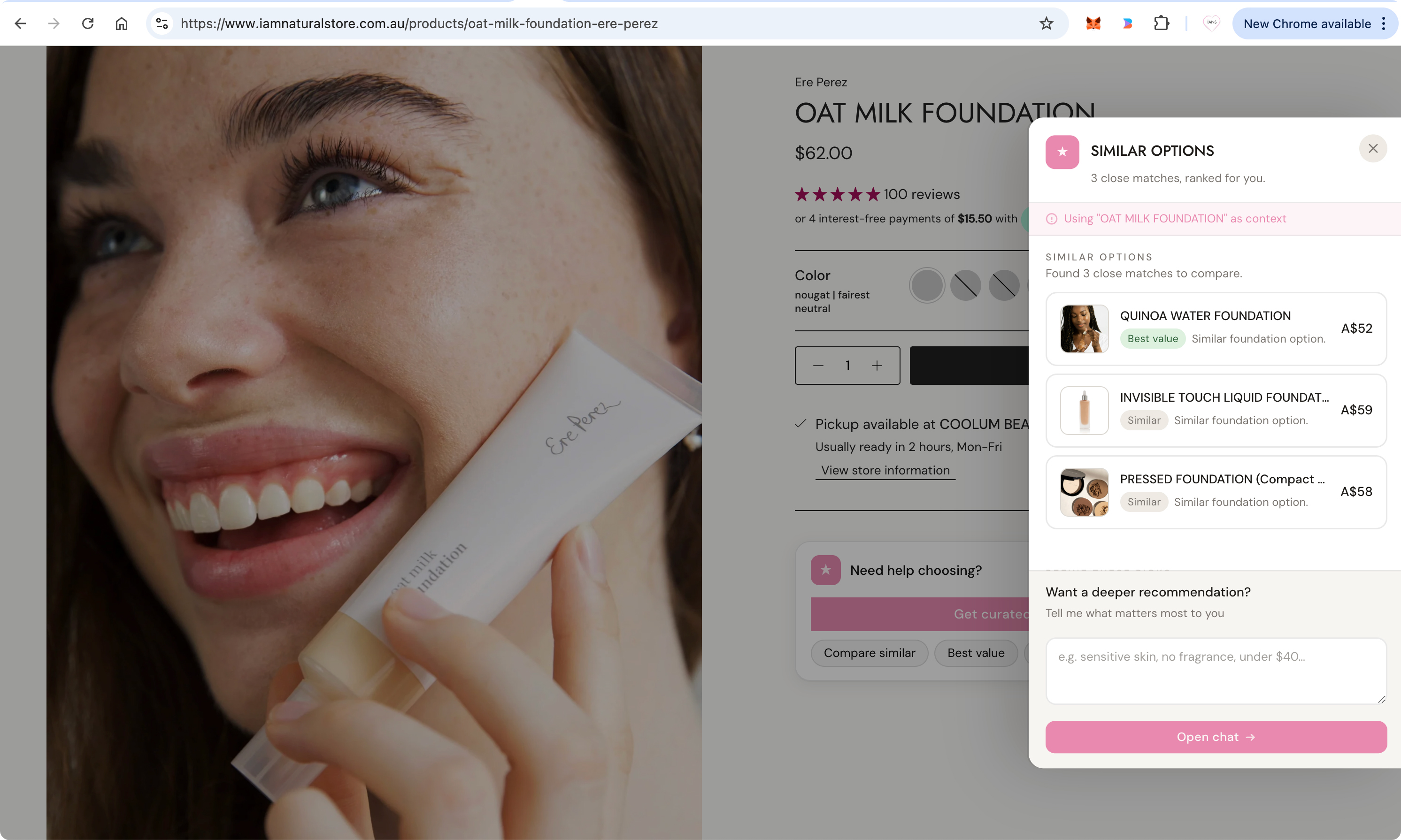
The Product Page Assistant adds a block to product pages that helps shoppers explore alternatives, compare options, and find similar products while viewing a product. It opens a drawer with suggested picks and can hand off to the full assistant for deeper questions.
Products close to what the shopper is viewing — alternatives in the same category.
Lower-priced alternatives for budget-conscious shoppers who like the current product.
Products offering stronger value or more premium features for a similar price.
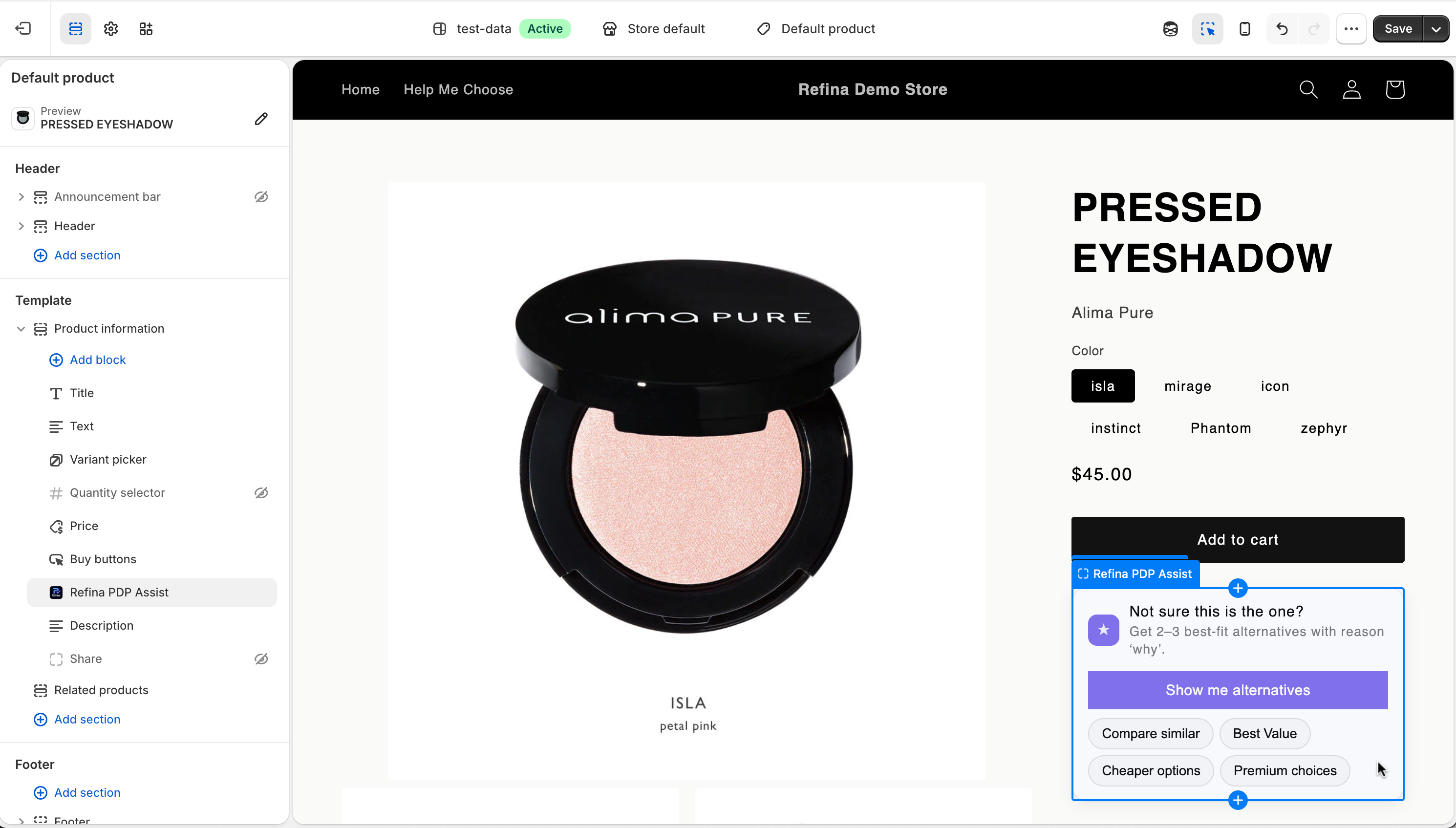
Main text on the card.
Example"Not sure this is the one?"
Supporting text beneath the headline.
Example"Get 2–3 best-fit alternatives with reason why."
CTA text.
Example"Show me alternatives"
Hides subcopy for a tighter layout.
UseWhen space is tight.
Title shown in the drawer.
Example"Similar options"
Supporting drawer text.
Example"3 close matches, ranked for you."
Preset prompt buttons.
Example"Compare similar", "Best value", "Cheaper options", "Premium choices"
Optional limit for "Cheaper options".
TipBlank uses the current product's price as the ceiling.
Background of the primary CTA and icon.
TipMatch your product-page CTA buttons.
Text colour on the button.
TipWhite on dark, black on light — keep contrast strong.
How rounded the card and buttons are.
Tip8–14px is standard for modern e-commerce.
Accent for the side drawer (Neutral, Forest, Midnight, Sienna).
TipNeutral matches the button colour.
Catalogue intelligence is Refina's foundation — how it learns what you sell, researches what makes each product unique, and how to match shopper questions to the right products.
Reads your catalogue via the Admin API: titles, descriptions, images, prices, variants, types, tags, collections, availability.
Frequency: initial sync, then automatic updates.
Products are indexed by meaning, so "moisturiser for dry skin" matches even without those exact words.
How: vector embeddings map concepts into searchable space.
Gemini adds context — ingredients, materials, specifications, benefits, use cases, comparisons.
Note: Gemini enriches; your catalogue decides what's recommended.
Combines your data with enriched context so Refina can explain why a product suits a shopper.
Store-specific: built on your catalogue, not a generic database.
Refina syncs changes automatically, but refresh manually when you:
Recommendation quality is directly tied to product data. Richer information enables better matching and more helpful explanations.
Primary identifier and search matching.
Do"Hydrating Face Serum with Hyaluronic Acid", not "Serum #42".
What it does, who it's for, why choose it.
DoBenefits, use cases, target customer — real detail over fluff.
Category matching and filtering.
DoConsistent types across similar items.
Attributes and characteristics.
Do"Dry Skin", "Fragrance-Free" — not "sample-tag".
Options and availability.
Do"30ml / 50ml", not "Option 1 / Option 2".
Visual context and cards.
DoHigh-quality photos; clear primary image.
Price-conscious recommendations.
DoKeep current; set compare-at prices for sales.
Relationships and context.
DoGroup related products meaningfully.
Title: Niacinamide Brightening Serum — 10% Concentration
Description: Lightweight 10% niacinamide serum to reduce dark spots and even tone. Best for combination/oily skin prone to hyperpigmentation. Fragrance-free, vegan.
Tags: Brightening, Niacinamide, Dark Spots, Oily Skin, Vegan
Title: Face Serum 2
Description: Good for skin. Apply to face.
Tags: skincare, new, sample-tag
Problem: no ingredients, benefits, who it's for, or how it differs.
Title: Alpine 500 Down Sleeping Bag — 15°F / -9°C
Description: 3-season down bag rated to 15°F. 800-fill, mummy design, fits up to 6'2", 2.8 lbs, DWR shell. Left/right zip.
Tags: 3-Season, Down, Backpacking, Cold Weather, Lightweight
Title: Sleeping Bag - Blue
Description: Warm sleeping bag for camping.
Tags: outdoor, camping
Problem: no rating, materials, weight, or use case. Colour in the title is irrelevant.
Test with real shopper questions, not generic queries or placeholder data.
Use the Dashboard and Analytics to monitor usage, understand shopper needs, and improve recommendation quality.
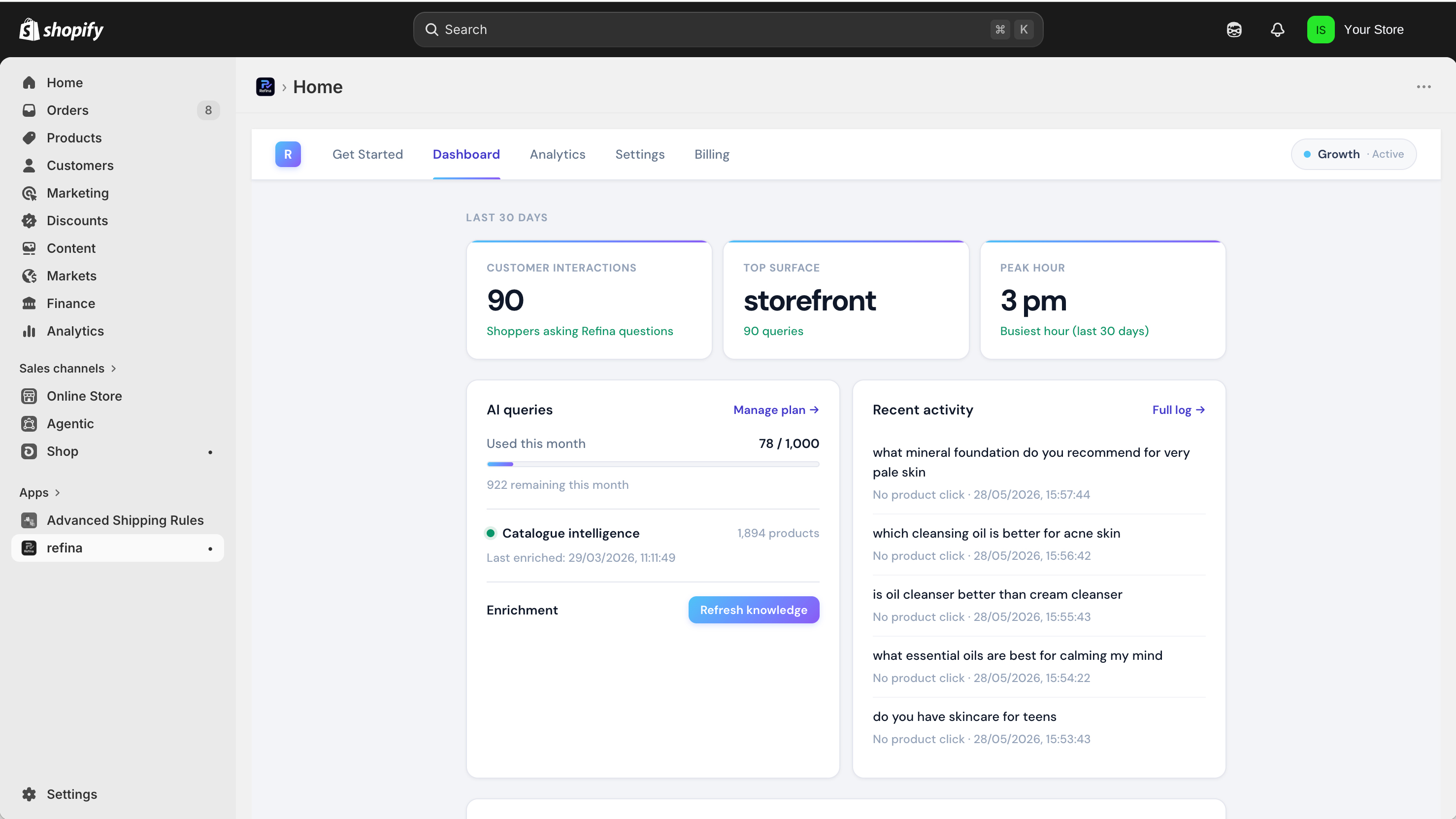
Whether intelligence is built, building, or needs refresh.
Query activity this billing period.
Watch: compare to plan limits; upgrade near the cap.
Refresh knowledge · View analytics · Test Refina.
Alerts for missing category, empty catalogue, or API problems.
Questions and recommendations generated.
UseTrack engagement; rising means shoppers find value.
The most common queries.
UseImprove descriptions or customise chip prompts.
Split between full assistant and PDP assistant.
UseSee which surfaces shoppers prefer.
Recommendations that lead to product visits.
UseMeasures relevance; low CTR means poor matching.
Sessions with multiple questions.
UseHigh follow-up means recommendations are helpful.
Common setup and usage issues with step-by-step solutions.
Cause: you're editing the wrong template — the Product Page Assistant block only appears on product templates.
/#refina.Cause: no active plan.
Expected: fresh recommendations take 3–8 seconds because Refina searches your product knowledge before explaining.
Investigate if responses take 15+ seconds consistently or time out.
/#refina.Behaviour: the current version may include out-of-stock items if they strongly match.
There's no reset button, but you can restore defaults manually:
No. Refina only recommends products from your Shopify catalogue. If a shopper mentions a competitor product, Refina uses it as context, then finds the closest relevant alternatives in your catalogue.
Gemini enriches product understanding with broader context — ingredients, materials, specifications, benefits, use cases, comparisons — which helps Refina explain why products match. Your catalogue still determines what gets recommended.
Refina's store-specific knowledge layer, built from your Shopify data, indexed for semantic search, and enriched with AI context. It matches questions to products by meaning, not just keywords. See Catalogue intelligence.
Full assistant: an advisor for open-ended questions and comparisons. Product-page assistant: fast, product-context suggestions via preset prompts, with handoff to the full assistant for deeper questions.
No. Use the launcher, a menu link, the Product Page Assistant, the Welcome Popup, or any combination. Many stores prefer menu link + PDP Assistant for a cleaner design.
Yes. Create a menu item linking to /#refina. Clicking it opens the full assistant.
Refina syncs additions and changes automatically. For major updates (bulk imports, big rewrites), refresh catalogue intelligence on the Dashboard.
Yes. The full assistant is built for conversations — "What's cheaper?", "Compare these two", "Which would you choose?".
Most stores: 5–15 minutes. Large catalogues (1,000+ products): 20–30 minutes. It runs in the background.
Yes. Refina uses Shopify's standard app embed and app block system, which works with all themes. The launcher and assistant render as overlays.
Yes — colours, button styles, wording, launcher position, PDP prompts, and popup messaging. See Full assistant and Product Page Assistant.
Refina acknowledges it doesn't have that product and redirects to the closest relevant alternatives. It won't invent products.
Check three things: the Dashboard shows "Active"; test questions return relevant products with clear explanations; and Analytics shows query volume rising over time.
Yes, but consider whether it's necessary. Refina handles open-ended questions; quiz apps use structured flows. Running both can confuse shoppers. Test separately first.
If you need assistance, include: your store URL, theme name, where you've enabled Refina, an example question you've tested, and whether catalogue intelligence has finished building.